Cross-Platform Input Method: Rime + Rime Ice + Wanxiang LLM
Recently Windows 11 went haywire and swapped my input method for something weird:

After learning about Rime, I went with the Weasel + Rime Ice + Wanxiang LLM combination. Actually, I don't have high demands for input methods—I feel I don't even need the Wanxiang LLM.
The main reasons I chose Rime:
- Privacy protection through local operation
- Full customization—interface, input schemes, habits, everything tailored to your needs
- You own your dictionary data, not locked in by commercial input methods
- Cross-platform sync, dictionary portability, using the same input method and dictionary across all devices
- Features and dictionaries that rival or even surpass commercial platforms
Now let's officially introduce this input method setup.
Rime
RIME | Zhongzhou Input Method Engine is a cross-platform input method framework. To use it, you need a Rime-based frontend client along with configuration files and dictionaries.
Recommended clients by platform:
- Mac: Squirrel
- Windows: Weasel
- Android: Fcitx5
- Linux: Fcitx5
- iOS: Hamster (closed-source, in-app purchase)
This article covers the installation process for Windows, Android, and iOS.
Rime Ice
Main features: Rime Configuration: Rime Ice | Long-term maintained simplified Chinese dictionary
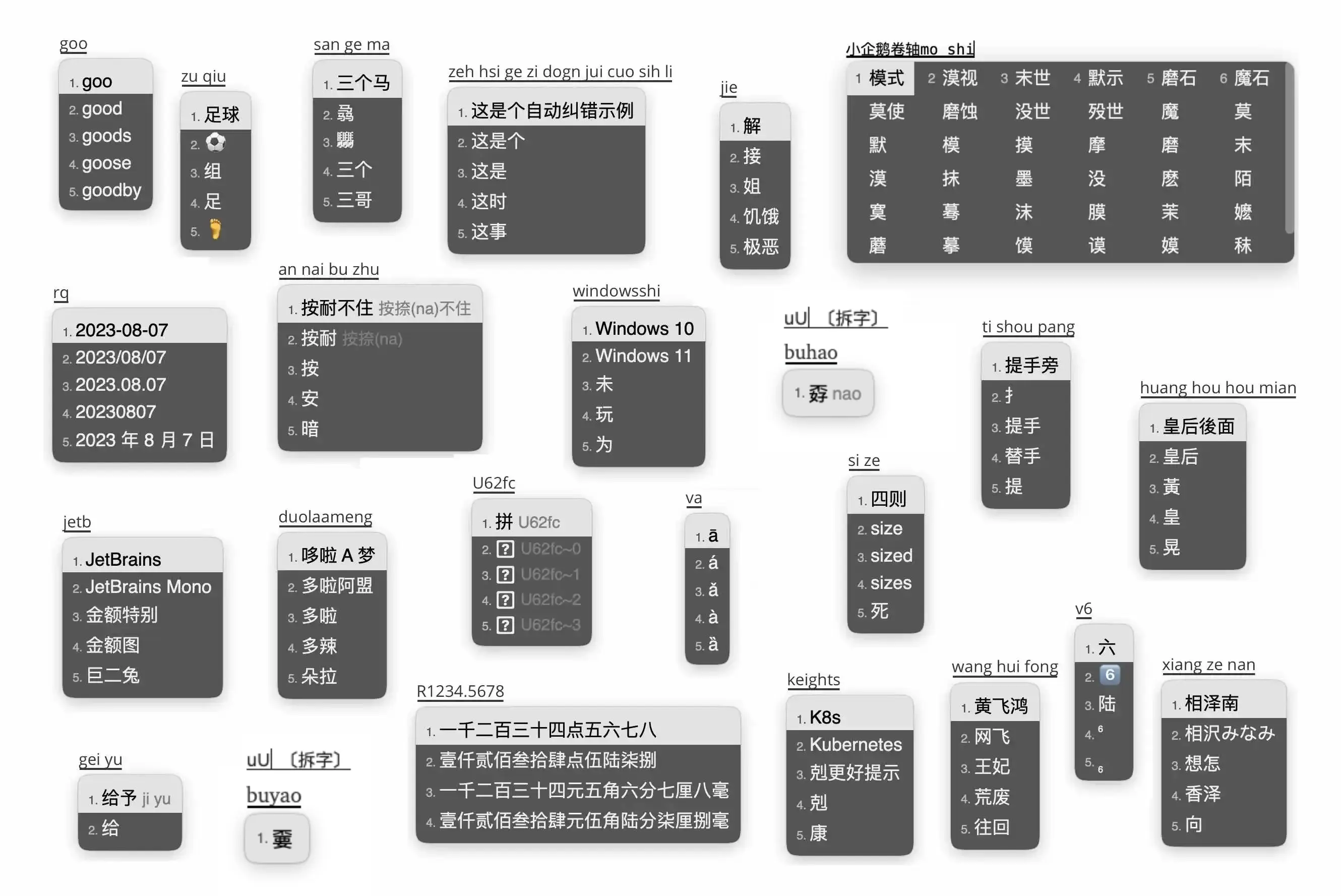
Usage Notes
To use all default features of Rime Ice, make sure:
- Your RIME frontend provides librime version ≥ 1.8.5
- The librime-lua dependency is included (most frontends already include it)
Default locations for the configuration/user directory:
- mac:
~/Library/Rime - win:
~\APPDATA\Rime - linux:
- Fcitx:
~/.config/fcitx/rime
- Fcitx:
- Android:
Internal storage\Android\data\org.fcitx.fcitx5.android\files\data\rime
If you only need to use or update the dictionary, you can manually copy and overwrite the cn_dicts, en_dicts, and opencc folders.
Modifying Configuration Files
You can modify the configuration files as needed. Rime Ice has extensive comments in its configuration files explaining each feature. If something isn't clear, refer to Rime Ice Configuration, Rime Wiki, Customization Guide, etc.
- For global settings like schemes and shortcuts, see: default.yaml
- For Weasel appearance and font settings, see: weasel.custom.yaml (Windows)
- Custom phrases: custom_phrase.txt. The included file has detailed instructions.
#weasel.custom.yaml excerpt:
patch:
  "style/color_scheme": lost_temple
  "style/font_face": "LXGW WenKai" # Change input method font to LXGW WenKai
- After modifying configuration files, you need to redeploy for changes to take effect.
Wanxiang LLM
Introduction
Dedicated to providing the strongest foundation for Rime: the most accurate pronunciation annotation, the most precise word frequency statistics, the most appropriate word segmentation dictionary, and a high-accuracy input model built on existing conditions.
- I personally haven't noticed a huge difference yet—maybe it's because I haven't experienced using it without the language model. Example:

The language model mainly improves long sentences, word frequency statistics, and word segmentation. For instance: "一千九" vs "以前就" (distinguishing homophones in context). According to forum feedback, the language model brings a noticeable improvement to Rime.
How to Use:
Just put this snippet in your scheme file (e.g., rime_ice.schema.yaml), download the model to your Rime user directory, change language: <u>amz-v2n3m1-zh-hans</u> to the filename you downloaded (without the extension), and redeploy!
__include: octagram   # Enable language model
# Language model
octagram:
  __patch:
    grammar:
      language: amz-v2n3m1-zh-hans
      collocation_max_length: 5
      collocation_min_length: 2
    translator/contextual_suggestions: true
    translator/max_homophones: 7
    translator/max_homographs: 7
Sync
The current sync mechanism is a bit cumbersome:
- Device A generates a sync file from its dictionary and syncs it to the Sync folder via a sync app.
- Device B syncs the Sync folder via the sync app and merges the dictionary.
- Now device A's dictionary is merged into device B.
- But device B's dictionary hasn't been synced to device A—you need to repeat the process.
Sync Setup
- Create a sync folder somewhere convenient, e.g.,
User/Documentson Windows,Documentson Android. - Edit the
installation.yamlfile:
installation_id: "Win01" # Device name, customize as you like
rime_version: 1.11.2
sync_dir: "C:/Users/***/RimeSync" # Your custom sync folder
- Use a sync app like Syncthing to sync the sync folders across your devices.
- The sync folder will contain multiple subfolders, each named after a device's ID, representing that device's sync data.
- When you click the sync button, Rime traverses all device directories' dictionaries and merges them into the local dictionary. That is:
- The dictionaries in the sync folder and the local dictionary are independent.
- Syncing the sync folder alone won't modify the local dictionary until you click Rime's sync button.
Detailed Guide
Windows
Installation
Download the Weasel installer. Installation process is straightforward.
- Select Chinese Simplified as the input language. User folder default or custom.
- Check the input schemes you want—you can change them later.
- Pick a color scheme.
Configure Rime Ice
- Press
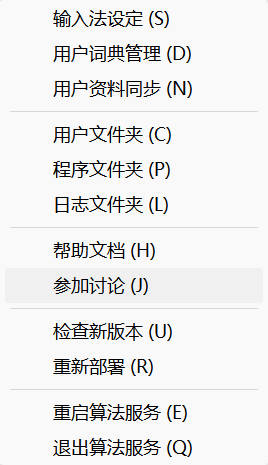
Win + Spaceto switch to Weasel. Right-click the 🀄 icon and open the user directory.

- Download the repository as a zip.
- Copy all files into your RIME frontend's configuration/user directory.
- Right-click and select "Redeploy".
- Right-click, select "Input Method Settings", and choose "Rime Ice".
Custom Configuration
Modify various YAML files to customize.
- Most shortcuts, like scheme switching, only respond when the input method window is active. I haven't run into software shortcut conflicts, but I disabled them anyway.
- Note: If you comment out all scheme selection shortcuts, you won't be able to open "Input Method Settings" by right-clicking the 🀄 icon.
But you probably won't need it unless you switch skins often.
- Note: If you comment out all scheme selection shortcuts, you won't be able to open "Input Method Settings" by right-clicking the 🀄 icon.
Install Wanxiang LLM
See aboveAndroid
Installation
- Install Fcitx5 Android itself: Fcitx5 | F-Droid
- Install the Rime plugin: Releases, select
plugin.rime. - Open Fcitx5, tap "Plugins" → load the Rime plugin.
Configure Rime Ice
It's recommended to copy the config files from your Windows setup to save effort.
Don't copy:
installation.yaml: Each device has its own unique installation config.user.yaml: Some metadata.build: Rebuilt by the client during deployment.plum: RIME's package manager, not useful on Android.
The user directory on Android is at:
Internal storage\Android\data\org.fcitx.fcitx5.android\files\data\rime
Customization and Extensions
Same as other platforms,see above
Enable
- Enable Fcitx5 Input Method in your phone's settings.
- Open any text field to bring up the input method panel.
- Tap the "More" button (three dots) on the candidate bar.
- Tap "Reload Configuration".
- After it finishes, tap the code icon button and select "Rime Ice".
iOS
- Placeholder, to be continued